01
Rectangle
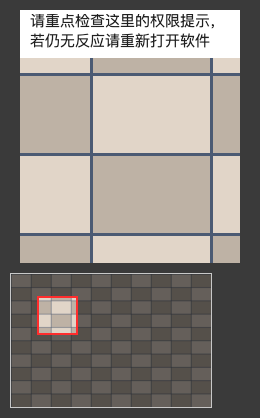
Release to copy. Hold Shift while dragging to add a note, shown in a bar above the image.
 PrtSc2AI 中文
 Grab a small region and PrtSc2AI adds a full-screen thumbnail that marks where it came from. One image lands on your clipboard, ready to paste into ChatGPT, Claude, Gemini, Copilot or Cursor.
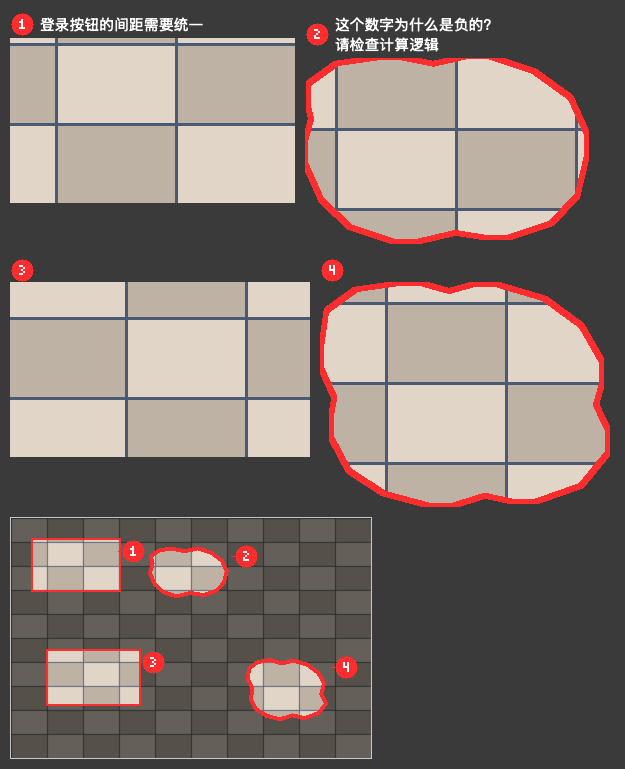
This single image is what your AI receives: numbered crops with notes, and a thumbnail showing where each one sits on screen.
Three quick steps
The screen freezes for selection. ⌘⇧2 on Mac, Ctrl+Shift+2 on Windows, or switch to PrtSc.
Drag a box or draw any shape with the pen. Release the mouse and the image is already on your clipboard.
⌘V or Ctrl+V in any chat. The crop stays sharp, and the thumbnail tells the model where on screen it came from.
Capture modes
Every mark is drawn outside your content, so nothing covers the text your AI needs to read.
Release to copy. Hold Shift while dragging to add a note, shown in a bar above the image.
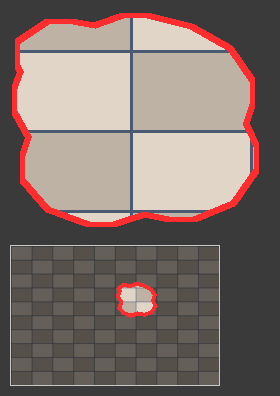
Circle an L-shape or part of a table. Only what is inside is kept; the rest is grayed out. Open loops are ignored.
Pick up to 9 regions; hold ⌥ or Alt to draw one. Add a note to each, then press Enter to combine them into one image.
Privacy
A screenshot tool can see your whole screen, so these rules are built into the app, and the source code will be public for anyone to check.
Processed on your deviceScreenshots, clipboard data and notes stay on your computer.
Online only to check for updatesThe request carries no device or personal data, and you can turn it off.
No analytics or trackingIf something breaks, export a diagnostics file and decide who gets it.
Thumbnail is optionalThe location thumbnail shows the rest of your screen. Turn it off in the menu if you prefer.
FAQ
macOS requires Screen Recording permission for any screenshot app. Turn on PrtSc2AI in System Settings → Privacy & Security → Screen & System Audio Recording, then reopen the app.
Windows 11 assigns PrtSc to Snipping Tool by default. Use Ctrl+Shift+2, or turn off "Use the Print screen key to open screen capture" in Settings → Accessibility → Keyboard.
It puts one plain image on the clipboard, so it works anywhere you can paste an image.
Yes. Free, with no capture limits.
By default, files stay in a local Pictures folder and are cleaned by age and size. You can also disable saving and use the clipboard only.
Changelog
Look here.